
We have featured a few of our DIY ham radio Morse Code Keys here before, but this one is less than a dollar, super portable, and actually works surprisingly well. I may have found my new hiking key!
-----


We have featured a few of our DIY ham radio Morse Code Keys here before, but this one is less than a dollar, super portable, and actually works surprisingly well. I may have found my new hiking key!
-----


We committed to learning the guitar (again). However, this time we are taking a more methodical approach vs. just getting frustrated that we don't sound like Monte Montgomery.
The internet is helpful and one of our favorite resources has been Lauren Bateman who encourages "Embace the Suck". Lauren encourages other things too... like practicing chord changes with a metronome and keeping a progress log. These two suggestions are huge. We created some simple HTML markup to help us practice random chord changes and, gotta say, you show more results with practice than with excuses.
Just copy and save the HTML markup between the "-----"s below on your hard drive as "random_guitar_chords.html" and it should work in any web browser. NOTE: There is no spyware, tracking, cookies, disk writes, etc. Feel free to edit the HTML to meet your needs.
Good luck and see you on the stage!
-----
<!DOCTYPE html>-----

Meshtasic is cool. The quickie description from their website is: "An open source, off-grid, decentralized, mesh network built to run on affordable, low-power devices". It's a way to send SMS type messages without the use of the internet, cell phone infrastructure, etc. The hardware is cheap and there are Android and iPhone apps to that support it.
We wanted to experiment with Meshtasic and purchased the RAKwireless WisBlock Base Board from Rokland. One nice thing about the WisBlock Base Board are the many supported 'plug and play' modules that allow for easy expansion.
-----
Enough about that... the problem we had was running the WisBlock base board with battery power. There is a right way to do this and there is the way we did it. The right way is to use a rechargeable LiPo battery with the connector already installed.
But... this is what we did mainly because we already had a drawer full of USB portable charging battery bricks. Like many other USB powered devices, the current draw from the WisBlock Base Board is so low that when powering it from a USB portable charging battery the portable charger will just shut down thinking there is nothing connected to it. Our fix was to add a 100 ohm load. The WisBlock makes this super easy from the on board BATTERY socket (see "right way" above).

----
Here's the current draw (~15mA) without the 100 ohm load added. All of our tested USB portable charging battery bricks would shut down:

We plug in the 100 ohm resistor and now all of our tested USB portable charging battery bricks stay activated with ~53mA current draw:


-----
Does it use more juice? Of course it does, but even the small lipstick battery shown will last for days and that's good enough for our use.
-----
FWIW, here is what our Meshtasic portable rig looks like:

-----

WS2812B LED strips are pretty cool. They are string of individually addressable RGB LEDs. This allows control of the color and brightness of each LED.
Fireworks are also pretty cool. On the downside they can be dangerous, scare wildlife, start fires, be expensive, illegal, etc. So, until we can afford our own fleet of drones we settled on this alternative. Like many projects, we stand on the shoulders of giants mentioned in the Ardunio source code below. Our main issue with their code was the effect was never changing so we improved mainly on that aspect; a few other things as well.
----
Result:
The hardware is an ESP8266 and a WS2812B LED-strip with 300 LEDs (16.5 feet). We wanted to use a Ardunio Nano (because we had one), but due to the amount of memory needed to define the arrays for the 300 LEDs we went with an ESP8266 (because we had one).


.JPG)
.JPG)
/*
* LED Fireworks Simulator
* WhiskeyTangoHotel.Com
* JAN 2024
*
* To vary the effect experiments randomizing variables
* within acceptable limits was done. Otherwise the effect
* just looks to same 'shot after shot'. Other mods as well
*
* Leverage from https://www.Daniel-Westhof.de and
* https://www.anirama.com/1000leds/1d-fireworks/
*
* Hardware:
* HiLetgo 1PC ESP8266 NodeMCU CP2102 ESP-12E Development Board and a
* WS2812B LED-strip with 300 LEDs (16.5 feet).
*/
#include <FastLED.h>
#define NUM_LEDS 300
#define DATA_PIN 5 // Labeled a D1 on the board.
#define LED_PIN 2 // This is the BLUE LED on board
#define NUM_SPARKS NUM_LEDS/2 // OG: NUM_LEDS/2
CRGB leds[NUM_LEDS]; // sets up block of memory
float sparkPos[NUM_SPARKS];
float sparkVel[NUM_SPARKS];
float sparkCol[NUM_SPARKS];
float flarePos;
float gravity = -.008; // m/s/s
int launch_delay; // we later randomize seconds between launches
void setup() {
Serial.begin(115200);
FastLED.addLeds<NEOPIXEL, DATA_PIN>(leds, NUM_LEDS);
pinMode(LED_PIN, OUTPUT);
}
void loop() {
// Delay untill next launch. Blink BLUE on board LED
Serial.println(" ");
launch_delay = int(random(5,30)); // Min>=5. Randomize secs between BOOMs.
//launch_delay = 5;
for (int i = (launch_delay - 5); i > 0; i--) {
Serial.println(String(i + 5) + " seconds to launch...");
digitalWrite(LED_PIN, LOW); // ON
delay(500);
digitalWrite(LED_PIN, HIGH); // OFF
delay(500);
}
// Slower timer done . Fast blink for ~5 seconds to warn of BOOM
Serial.print("5 seconds to launch!!!");
for (int i = 50; i > 0; i--) {
Serial.print(".");
digitalWrite(LED_PIN, LOW); // ON
delay(50);
digitalWrite(LED_PIN, HIGH); // OFF
delay(50);
}
Serial.println(".");
Serial.print("BOOM...");
digitalWrite(LED_PIN, LOW); // LED ON
// send up flare
flare();
digitalWrite(LED_PIN, HIGH); // LED OFF
// explode
explodeLoop();
}
void flare() {
flarePos = 0; // 0
// flareVel is how hight the BOOM is. 2.2 is max height
float flareVel = float(random(180, 215)) / 100; // Start: (180, 195)) / 100; trial and error to get reasonable range
Serial.println(" with flare height of " + String((flareVel*100)/2.2) + "%"); // How high is the BOOM?
float brightness = 5; // OG: 1
// initialize launch sparks
int blast_base = random(5,20); // number of sparks at blast base.
for (int i = 0; i < blast_base; i++) { // OG: int i = 0; i < 5; i++
sparkPos[i] = 0; sparkVel[i] = (float(random8()) / 255) * (flareVel / 2); // OG: (float(random8()) / 255) * (flareVel / 5); the / xx); is control value for BURST
sparkCol[i] = sparkVel[i] * 1000; sparkCol[i] = constrain(sparkCol[i], 0, 255);
//Serial.println(String(i) + " " + String(sparkVel[i]) + " " + String(sparkCol[i]));
}
// launch
while (flareVel >= -.2) { // OG: flareVel >= -.2 when to explode after peak BOOM. Bigger neg val means more fall before sparks
// sparks
for (int i = 0; i < blast_base; i++) { // OG: int i = 0; i < 5; i++
sparkPos[i] += sparkVel[i];
sparkPos[i] = constrain(sparkPos[i], 0, 120);
sparkVel[i] += gravity;
sparkCol[i] += -.8;
sparkCol[i] = constrain(sparkCol[i], 0, 255);
leds[int(sparkPos[i])] = HeatColor(sparkCol[i]);
leds[int(sparkPos[i])] %= 50; // reduce brightness to 50/255
}
// flare
leds[int(flarePos)] = CHSV(0, 0, int(brightness * 255));
FastLED.show();
delay(5);
FastLED.clear();
flarePos += flareVel;
flarePos = constrain(flarePos, 0, NUM_LEDS-1);
flareVel += gravity;
brightness *= .99; // OG = .98
} // while (flareVel >= -.2)
} // end void flare
void explodeLoop() {
int nSpark_var = random(2, 10); // Bigger number is less BOOM sparks
int nSparks = flarePos / nSpark_var; // OG: nSparks = flarePos / 2
//Serial.println(String(nSparks));
// initialize sparks
for (int i = 0; i < nSparks; i++) {
sparkPos[i] = flarePos; sparkVel[i] = (float(random(0, 20000)) / 10000.0) - 1.0; // from -1 to 1
sparkCol[i] = abs(sparkVel[i]) * 500; // set colors before scaling velocity to keep them bright
sparkCol[i] = constrain(sparkCol[i], 0, 255);
sparkVel[i] *= flarePos / NUM_LEDS; // proportional to height
}
sparkCol[0] = 255; // OG: 255 This will be our known spark
float dying_gravity = gravity;
float c1 = random(80,130); // OG: 120
float c2 = random(1,30); // OG: 50
//Serial.println("c1 is: " + String(c1));
//Serial.println("c2 is: " + String(c2));
while(sparkCol[0] > c2/128) { // OG: (sparkCol[0] > c2/128) As long as our known spark is lit, work with all the sparks
int decay_rate = (random(0,50)); // Slow to decay the blast sparks. (0,50) seems right. Bigger is slower. OG: delay(0);
delay(decay_rate);
//Serial.println(String(decay_rate));
FastLED.clear();
for (int i = 0; i < nSparks; i++) {
sparkPos[i] += sparkVel[i];
sparkPos[i] = constrain(sparkPos[i], 0, NUM_LEDS-1);
sparkVel[i] += dying_gravity;
sparkCol[i] *= .975;
sparkCol[i] = constrain(sparkCol[i], 0, 255); // RED cross dissolve. OG: constrain(sparkCol[i], 0, 255);
if(sparkCol[i] > c1) { // fade white to yellow
leds[int(sparkPos[i])] = CRGB(random(0,255), random(200,255), (255 * (sparkCol[i] - c1)) / (255 - c1)); // OG: CRGB(255, 255, (255 * (sparkCol[i] - c1)) / (255 - c1));
}
else if (sparkCol[i] < c2) { // fade from red to black
leds[int(sparkPos[i])] = CRGB((random(200,255) * sparkCol[i]) / c2, 0, 0); // OG: CRGB((255 * sparkCol[i]) / c2, 0, 0);
}
else { // fade from yellow to red
leds[int(sparkPos[i])] = CRGB(random(0,255), (random(200,255) * (sparkCol[i] - c2)) / (c1 - c2), 0); // OG: CRGB(255, (255 * (sparkCol[i] - c2)) / (c1 - c2), 0);
}
}
dying_gravity *= .99; // OG: dying_gravity *= .99; As sparks burn out they fall slower
FastLED.show();
} // end while(sparkCol)
delay(5);
FastLED.clear();
delay(5);
FastLED.show();
Serial.println("Effect Complete!!!");
} // end void explodeLoop()
-----

We saw this Hackaday article where [Proper DIY] used his woodworking skills to produce some excellent quality concrete signs and decorations. We liked the idea but the effort required fashioning the wood for the letters seemed like a lot of work to us.
-----
So.... we have a 3D printer and set out to find an easier way. The 'recipe' is pretty easy:
1)Print your design on a 3D printer. 2)Glue the design to the bottom of a concrete mold. 3)Pour concrete, shake out the bubbles, and wait for curing. 4)Unscrew the mold and release the final product.
The results are good enough with only a fraction of the time (and skill).
-----
Maybe not needed, but here is a little more detail:
- Build mold (use long wood screws to allow reuse):

- Print your 3D design and glue it the the bottom of the mold:


- Fill the mold, vibrate out the voids, then wait. We used this material mainly because we had some on hand:

- Results:


-----
We are happy with outcome. [Proper DIY] did have better results, but with a whole, whole, whole lot more effort.
-----
----
We are linking to the Alan W2AEW video above. Alan's YouTube channel is an excellent resource for ham radio, test and measurement, as well as other electronics knowledge. The video gave us the idea to check the CW keyer speeds on our most expensive rig and our lowest price rig. It seemed like a good excuse to use the Liquid Instruments Moku:Lab oscilloscope, plus we were curious.
----
We won't explain the method, Alan W2AEW does a great job with that in the video. One different is we used the audio output for our delta(t) measurement.
-----
Here are our results:

We haven't seen the same RBN vs. Rig WPM speed different as Alan pointed out and the table helps explain why. Sure, the numbers are 'off' at the 25WPM test, but we seldom operate at those CW speeds.
----
FlexRadio 6400: Moku:Lab oscilloscope captures:


-----
QRP Labs QCX: Moku:Lab oscilloscope captures:


.jpg)

-----
We found this ~60 year old Biddle Megger while going through the closet. It was used by my father's and was no longer working. The fix was possibly something simple, but we don't need a Megger so the crank voltage transformer became more interesting.
-----
Just for the heck of it we decided to mount the crank voltage transformer and discover what it could still do.

Here the results using the Moku:Lab as our measurement tool. This was easy duty for the Moku which has an 13 amazing instruments in one box and worth reading about.
----

Turning the crank as slow as we could yielded about ~480V RMS at 13Hz. Touching the output terminals not was screamingly painful, but we did verify that it is uncomfortable to touch.
----
Max output was ~800V RMS at 55Hz and we wisely decided not to sample the pain level of this output.

-----


When our FlexRadio is not being used it really should do 'something'. We typically put it in a WSPR spotting mode via WSJT-X, but sometimes we forget. This short simple Python script takes care of that.
----
FlexRadio has an open API and we could have just used it to accomplish the project. However, there are two wonderful (and free) programs that are always open on the PC running the FlexRadio SmartSDR software that make things easier; FRStack and Slice Master. In this project we use FRStack for API calls and Slice Master to automatically launch WSJT-X. NOTE: We use FRStack and Slice Master for other features as well. IMO they are must have programs to make your Flex more flexible.
-----
The Python script listed below looks at user defined intervals (in the example it is every 30 minutes) to see if any settings on the rig have changed. If a setting has changed (frequency, band, mode, volume, filters, etc. etc. etc...) the program assumes the rig is in use and just waits for the next check interval.

If the time interval expires and no settings have been changed the program assumes the rig is idle and switches it to DIGU mode.


# auto_wspr.py OCT2023
#
# Python script to make the Flex Radio switch to WSPR mode when idle.
#
# Written by: WhiskeyTangoHotel.Com
#
# Leverages the auto LAUNCH feature of "Slice Master".
# https://github.com/K1DBO/slice-master-6000
#
# Leverages WSJT-X for TX/Rx spotting
# https://wsjt.sourceforge.io/wsjtx.html
#
# Leverages FRStack
# https://www.mkcmsoftware.com/download/FRStackWebApiReadme.html#apis
import requests
import urllib.request
import time
# Set idle_max to the number of minutes between checks to see if any rig settings have changed.
# If idle rig then switch to DIGU mode. DIGU mode will trigger Slice Master to start WSJT-X.
idle_max = 60 # in minutes, How ofen to check to see if the rig is idle.
last_status = 'First_run'
mode = ' '
#print ( 'Entering endless loop.....' )
while True:
print ('Checking for rig activity every' , idle_max , 'minutes.')
print ('---------------------------------------------------')
# If rig is in DIGU mode then do nothing. We are already running WXJT
response = requests.get('http://localhost:13522/api/ActiveSlice/MODE?')
response = response.text
mode = response
#print ('MODE is:' , response)
if response == '"DIGU"':
print ('Rig in DIGU mode. Do nothing.')
else: # not in DIGU mode. Have rig settings changed or is it idle?
response = requests.get('http://localhost:13522/api/ActiveSlice/INFO?')
current_status = response.text
if last_status != current_status:
print ('Rig in use. Do not change to DIGU. Do not launch WSJT')
#print(last_status)
print (' ')
#print (current_status)
last_status = current_status
else:
print ('Rig has been idle for' , idle_max , 'minutes.')
print ('Switch to DIGU mode. Slice Master will launch WSJT.')
#print(last_status)
print (' ')
#print (current_status)
# DIGU modes can be LOUD. Adjust the volume to low
urllib.request.urlopen('http://localhost:13522/api/ActiveSlice/AUDIOGAIN?=+1')
# Switch rig to DIGU mode
urllib.request.urlopen('http://localhost:13522/api/ActiveSlice/MODE?=DIGU')
for nextcheck in range(idle_max, 0, -1):
response = requests.get('http://localhost:13522/api/ActiveSlice/MODE?')
response = response.text
mode = response
print ('MODE is', mode, '-', int(nextcheck) , "minutes until next idle rig check...")
time.sleep(60)
print (' ')
# end endless while loop
-----
-----
The Pimoroni Galactic Unicorn is a cool piece of kit that we have had our eye on for a while. The item is popular and sells out quickly, but we finally got our hands on one. Summary: It's awesome! After the initial "WOW!" factor diminished we went in search of a project for it.
-----
The answer was obvious. How many times are you sitting comfortably in your home theater room with the family and you miss a Morse Code CQ from one of your ham radio friends? That's what we thought, so we set out to solve that inconvenient and irritating problem!
-----
The project needs a WiFi connection for the Pimoroni Galactic Unicorn. No ham radio or RF access to the ham bands are needed.
Steps:
- Buy a Pimoroni Galactic Unicorn and set it up to run MicroPython.
- Create a HamAlert account and set up some triggers for the ham operators of interest. You will need to select the "telnet" reporting option in the trigger menu.
- Copy/Paste our MicroPython source code below into the Pimoroni Galactic Unicorn. We used Thonny as our development environment. Name the program "main.py" so it will autostart at bootup.
- Place the rig under that big screen TV in the home theater room. Simply wait for your movie or favorite show to be interrupted letting you know it's time to drop everything and fire up your ham radio for a QSO!
-----
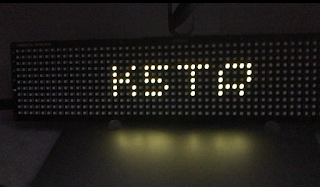
Here is a live demo of the setup. What happens is:
- K5JM, who is in my HamAlert triggers is spotted calling CQ.
- The Pimoroni Galactic Unicorn is logged into and monitoring the HamAlert telenet server.
- We parse the response of the HamAlert telnet server and display the information we want on the LED matrix.
- Of course, we answer K5JM. Success!!! Next we return to the home theater room and await the next interruption.
Source code below:
'''
Morse Alert
MAY2023
WhiskeyTangoHotel.Com
This program displays your individual hamalert.org telnet CW triggers
onto the display of the Raspberry PI PicoW based Pimoroni Galactic Unicorn.
Thanks HamAlert.Org by Manuel Kasper (HB9DQM) for their telnet service!
CW CQ info shown is "Callsign", "Frequency", and "WPM", but other options are available.
The text is color coded by band.
Scroll speed and total display variables are adjustable.
Alert 'chirp' is adjustable.
A CW beacon, such as WR5U which transmits about every 30 minutes,
may be a suggested hamalert telnet trigger to avoid timeouts from the
hamalert.org server.
NOTE: Does not work with hamalert.org simulated triggers
'''
#Variable set up:
wifi_ssid = "wifi_ssid"
wifi_password = "wifi_password"
# hamalert.org login info
username = "telnet_username"
password = "telnet_passord"
telnetaddr = "hamalert.org" # "telnetaddress.com"
port = 7300 # port as a number, not a string
from galactic import GalacticUnicorn
gu = GalacticUnicorn()
# Set up speaker for a sweeping 'chirp' alert
volume = .5 # range is 0 to 1. 0 = For no sound
start_tone = 500 #500 is a good start Adjust to suit.
end_tone = 1000 #1000 is a good start. Adjust to suit.
channels = [gu.synth_channel(i) for i in range(1)]
waitmsg = "HamAlert..."
howbright = 0.1 # value range 0.0 to 1.0
dwelltime = 5 # how many seconds to display Callsign, Freq, WPM
tot_time = 60 # how long (seconds) to cycle this info
utc_offset = -5 # we print to screen (not to LEDs the zulu and local time)
import network
import usocket as socket
import time
import utime
from picographics import PicoGraphics, DISPLAY_GALACTIC_UNICORN
graphics = PicoGraphics(display=DISPLAY_GALACTIC_UNICORN)
#Define some colours
BLACK = graphics.create_pen(0, 0, 0)
RED = graphics.create_pen(255, 0, 0)
YELLOW = graphics.create_pen(255, 255, 0)
GREEN = graphics.create_pen(0, 255, 0)
CYAN = graphics.create_pen(0, 255, 255)
BLUE = graphics.create_pen(0, 0, 255)
MAGENTA = graphics.create_pen(255, 0, 255)
WHITE = graphics.create_pen(200, 200, 200)
GREY = graphics.create_pen(100, 100, 100)
DRKGRY = graphics.create_pen(50, 50, 50)
FREQCOLOR = WHITE # this is the text color that will change per band
waitmsgcolor = GREY # number, not a string
# create a PicoGraphics framebuffer to draw into
graphics = PicoGraphics(display=DISPLAY_GALACTIC_UNICORN)
gu.set_brightness(howbright)
#Create a single wlan object and use as a global for all net calls
wlan = network.WLAN(network.STA_IF)
wlan.active(True)
wlan.connect(wifi_ssid, wifi_password)
# Wait for connect success or failure
max_wait = 100
while max_wait > 0:
if wlan.status() < 0 or wlan.status() >= 3:
break
max_wait -= 1
wifistat = 'WiFi...' + str(100-max_wait)
if max_wait == 0:
wifistat = "WiFi fail"
print(wifistat)
width = graphics.measure_text(wifistat, 1)
startplace = int(float(GalacticUnicorn.WIDTH) - width) / 2
# clear the graphics object
graphics.set_pen(BLACK)
graphics.clear()
# draw the text
graphics.set_pen(waitmsgcolor)
graphics.text(wifistat, round(startplace), 2, -1, 0.55);
# update the display
gu.update(graphics)
time.sleep(.5)
if max_wait > 0:
print("WIFI OK!")
width = graphics.measure_text('WIFI OK!', 1)
startplace = int(float(GalacticUnicorn.WIDTH) - width) / 2
# clear the graphics object
graphics.set_pen(BLACK)
graphics.clear()
# draw the text
graphics.set_pen(waitmsgcolor)
graphics.text('WIFI OK!', round(startplace), 2, -1, 0.55);
# update the display
gu.update(graphics)
time.sleep(5)
# Connect to the telnet server
tn = socket.socket()
addr = socket.getaddrinfo(telnetaddr, port)[0][-1]
tn.connect(addr)
# Log in with the username and password to telnet server
tn.send(username + "\r\n")
tn.send(password + "\r\n")
last_spot = utime.time() # we track/print time between spots
# Read and process the telnet server response
while True:
data = tn.recv(1024)
data = data.decode("utf-8")
print(data)
# Center "waitmsg"
width = graphics.measure_text(waitmsg, 1)
startplace = int(float(GalacticUnicorn.WIDTH) - width) / 2
# clear the graphics object
graphics.set_pen(BLACK)
graphics.clear()
# draw the text
graphics.set_pen(waitmsgcolor)
graphics.text(waitmsg, round(startplace), 2, -1, 0.55);
# update the display
gu.update(graphics)
# Play 'connected' Chirp alert
for tone in range(start_tone, end_tone):
channels[0].play_tone(tone, volume)
gu.play_synth()
time.sleep(.0009)
gu.stop_playing()
if "DX de" in data:
#print(data)
# Split the string into a list of values
data_list = data.split()
# Assign each value to separate variables
dx = data_list[0]
de = data_list[1]
spotter = data_list[2]
freq = data_list[3]
spotted = data_list[4]
db = data_list[5]
wpm = data_list[6]
zulu = data_list[7]
# Print the values of the variables
print("HamAlert returns:")
#print('dx:', dx )
#print('de:', de)
#print('spotter:', spotter)
print('Freq:', freq)
print('Spotted:', spotted)
#print('db:', db)
print('WPM:', wpm)
#print('zulu:', zulu)
#Convert zulu to local
hours = int(zulu[:2])
minutes = int(zulu[2:4])
local_hours = hours + utc_offset
local_minutes = minutes
# If negative hour fix wraparound
if local_hours < 0:
local_hours += 24
# Format to local timeg
local_time = "{:02d}:{:02d}".format(local_hours, local_minutes)
print('Local time:', local_time)
#print('Minutes last spot:', int( (utime.time() - last_spot)/ 60) )
last_spot = utime.time() # we track/print time between spots
print('-------------------')
print
FREQCOLOR = WHITE
band = float(freq)
if 24890 <= band <= 24990:
FREQCOLOR = CYAN # text color for 12 meter spots
if 18068 <= band <= 18168:
FREQCOLOR = BLUE # text color for 17 meter spots
if 14000 <= band <= 14350:
FREQCOLOR = MAGENTA # text color for 20 meter spots
if 10100 <= band <= 10150:
FREQCOLOR = RED # text color for 30 meter spots
if 7000 <= band <= 7300:
FREQCOLOR = YELLOW # text color for 40 meter spots
if 3500 <= band <= 4000:
FREQCOLOR = GREEN # text color for 80 meter spots
for x in range(0, int((tot_time/(dwelltime*3)))):
# Center position of the text
width = graphics.measure_text(spotted, 1)
startplace = int(float(GalacticUnicorn.WIDTH) - width) / 2
# clear the graphics object
graphics.set_pen(BLACK)
graphics.clear()
# draw the text
graphics.set_pen(FREQCOLOR)
graphics.text(spotted, round(startplace), 2, -1, 0.55);
# update the display
gu.update(graphics)
time.sleep(dwelltime)
# Center position of the text
width = graphics.measure_text(freq, 1)
startplace = int(float(GalacticUnicorn.WIDTH) - width) / 2
# clear the graphics object
graphics.set_pen(BLACK)
graphics.clear()
# draw the text
graphics.set_pen(FREQCOLOR)
graphics.text(freq, round(startplace), 2, -1, 0.55);
# update the display
gu.update(graphics)
time.sleep(dwelltime)
# Center position of the text
width = graphics.measure_text(wpm, 1)
startplace = int(float(GalacticUnicorn.WIDTH) - width) / 2
# clear the graphics object
graphics.set_pen(BLACK)
graphics.clear()
# draw the text
graphics.set_pen(FREQCOLOR)
graphics.text(wpm, round(startplace), 2, -1, 0.55);
# update the display
gu.update(graphics)
time.sleep(dwelltime)
#print(waitmsg)
# Below if you want time of last spot shown. This can help ID a telnet timeout.
# See our reason for having a CW beacon comment at the very top.
waitmsg = 'Last ' + local_time
# This if you want the your pre-defined waitmsg after a spot
#width = graphics.measure_text(waitmsg, 1)
width = graphics.measure_text(waitmsg, 1)
startplace = int(float(GalacticUnicorn.WIDTH) - width) / 2
# clear the graphics object
graphics.set_pen(BLACK)
graphics.clear()
# draw the text
graphics.set_pen(waitmsgcolor)
graphics.text(waitmsg, round(startplace), 2, -1, 0.55);
# update the display
gu.update(graphics)
-----


-----
We saw this Elitech RC-5+ Temperature Data Logger at Amazon for $19.95 USD. The specs looked great and for the price we just had to give a try. We were not disappointed.
The ElitechLog software is a free download and provides easy to view graphs and stats on the gathered data. Just to do 'something' with the unit we placed it in our refrigerator overnight in various locations. Below are the overnight averages:

-----
Here is a temperature graph taken over a 20 hour time period and a data point every 60 seconds.

More equally useless projects come to mind and we will post the them below as they happen. In the end this is a great value and a useful tool.
-----
After getting a new LG refrigerator we reran the experiment (NOV2023):
